|
Access 5.4 |
Creation of passwords |
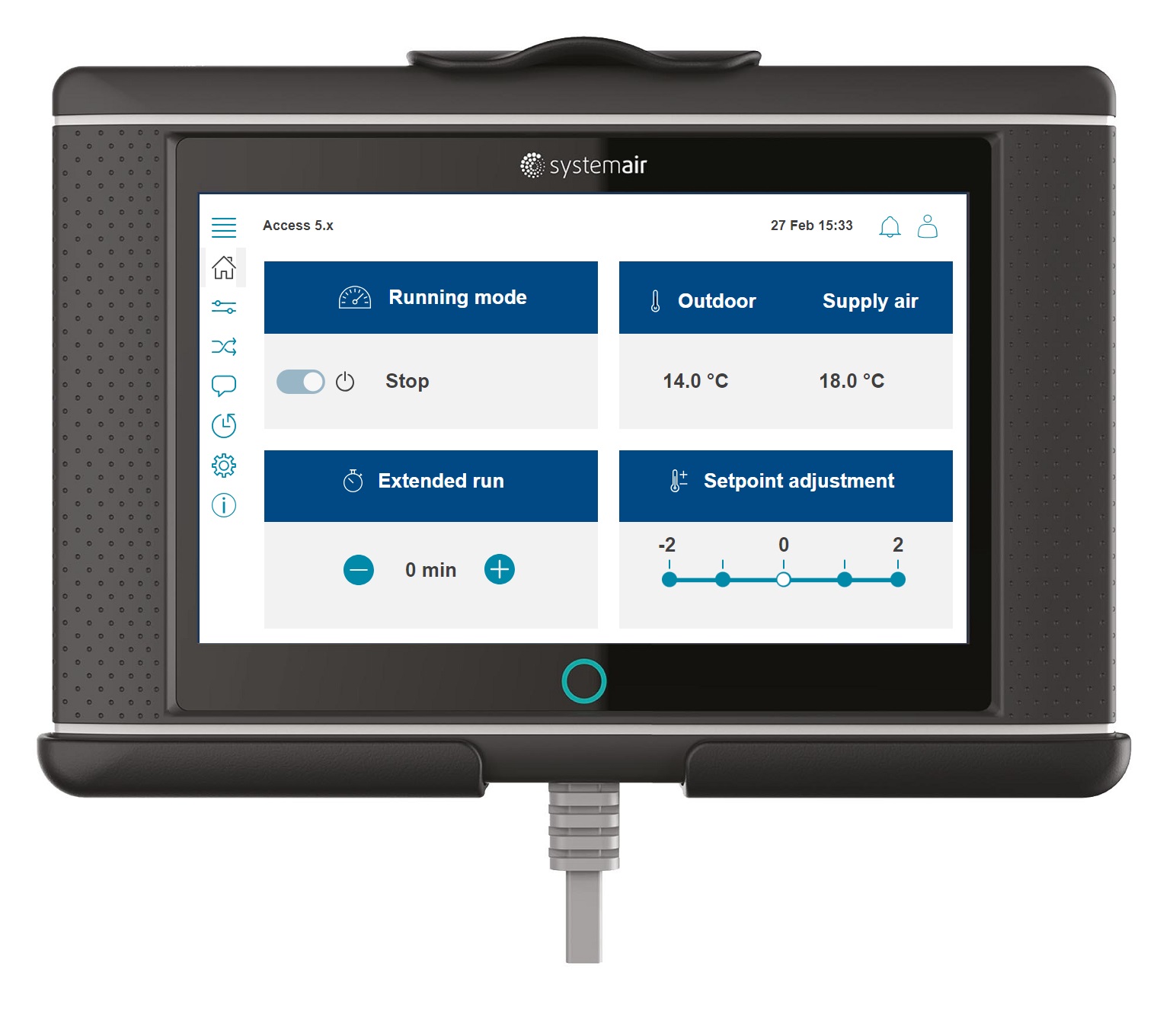
Note: The information in this document is valid from Access Application software 5.4 and onward.
When taking the product into use for the first time passwords must be created. This document describes how to create unique passwords as well as how to proceed if the passwords are lost.
To create an Admin password
When using Access and trying to log in for the first time a pop up message will be shown to create an Admin password. The following information will be shown in the Access application:
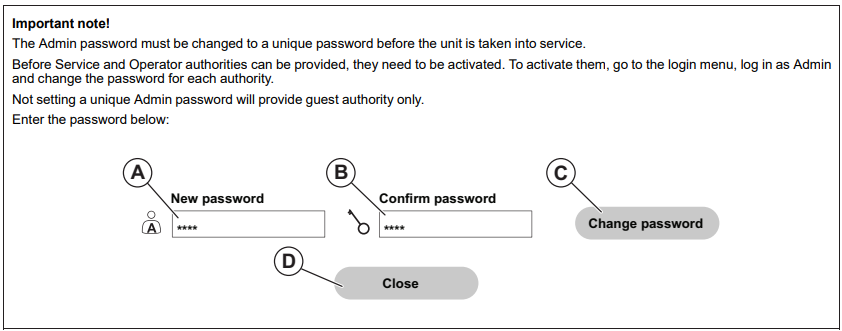
A. New password
B. Confirm password
C. Change password
D. Close
The password must have a minimum of 4 characters.
Note: The number 4108 is not permitted to be used as Admin password. Using 4108 will indicate an error message. Refer to Allowed passwords characters for information about allowed passwords. A message will confirm when the password is accepted.
To create Operator and Service passwords
When the Admin password is created, Service and Operator user modes can be activated. Go to the log in menu and log in as admin. Add password for each user mode.
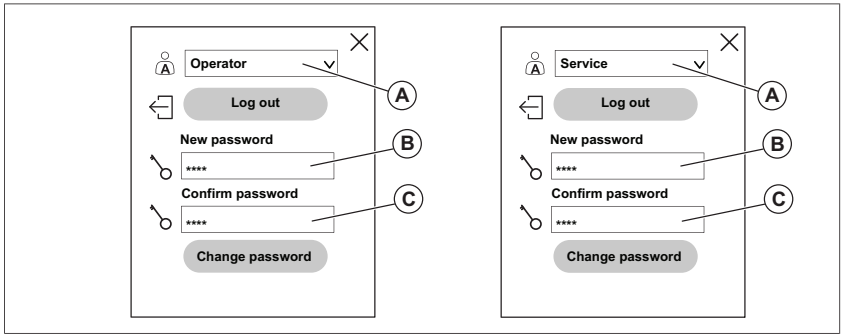
A. Operator / Service
B. New password
C. Confirm password
A message will confirm when the password is accepted.
Allowed passwords characters
Password is required to be at least 4 and up to 30 characters long. The flowing characters can be used:
Uppercase letters: A-Z
Lowercase letters: a-z
Numbers: 0-9
Symbols: ~`!@#$%^&*()_-+={[}]|:;'<,>.?/
Note: 4108 is not allowed for Admin (legacy factory default password used for Admin)
If passwords are lost
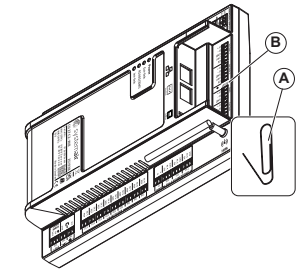
To reset the control unit, use a paper clip (A) and insert into the hole (B). After the reset, all passwords are disabled and the message to do a Admin password will be shown again. The Service and Operator passwords also needs to be created again.
Note: After a reset, the system will activate the commissioning settings. If no commissioning settings are available, the Systemair factory settings will be activated.